
Question Toolbar allows you to turn any activity into an interactive presentation. This floating toolbar appears over any application (including web pages, written documents, lessons, slide shows, etc.) allowing you to ask verbal questions or create content on-the-fly, while students respond in using student remotes. You may choose to save results to assess student understanding or simply save your presentations.
Question Tool Bar Overview
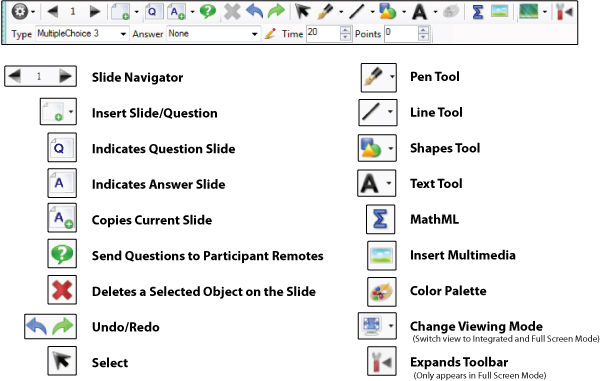

- Open up any computer program, application, graphic, etc you wish to use in your presentation.
- Open Qwizdom Connect, go to the Programs menu and select Question Toolbar. The Presentation Setup window appears.
- Select a Participant List.
- Select how you would like to save the results. (Recommend) Save to Results Manager.
- Select the options you would like available during presentation. See Presentation Setup for details.
- Click OK to begin the presentation.
Sample:
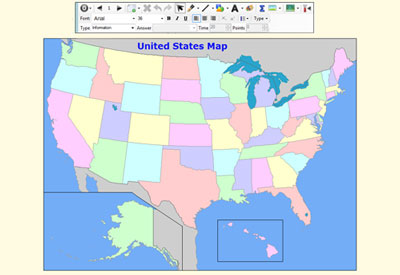
- Have the participants turn on their remotes.
- Select a question type from the Type menu (Multiple Choice, True/False, Yes/No, etc) and make desired annotations.
- Ask verbal questions and pose questions to student remotes by clicking the
 Pose button. A screen capture of your desktop will be made into a slide.
 - Once all participants have answered click the
 Stop Pose button.
 - (Optional) Click the public graph button on the Qwizdom Toolbar, Q6iRF, Q5RF or Q7RF Presenter Tablet to view results graph.
- Click the right-arrow to pose another question.
- When you are finished presenting, click the
 Utilities button and select Exit.
 - A window appears prompting you to Rename, Delete, or Leave the activity name.
- To save the activity, choose Rename and enter a name for the activity. The activity will be save in the Content Manager.